
1. What Is MySQL?
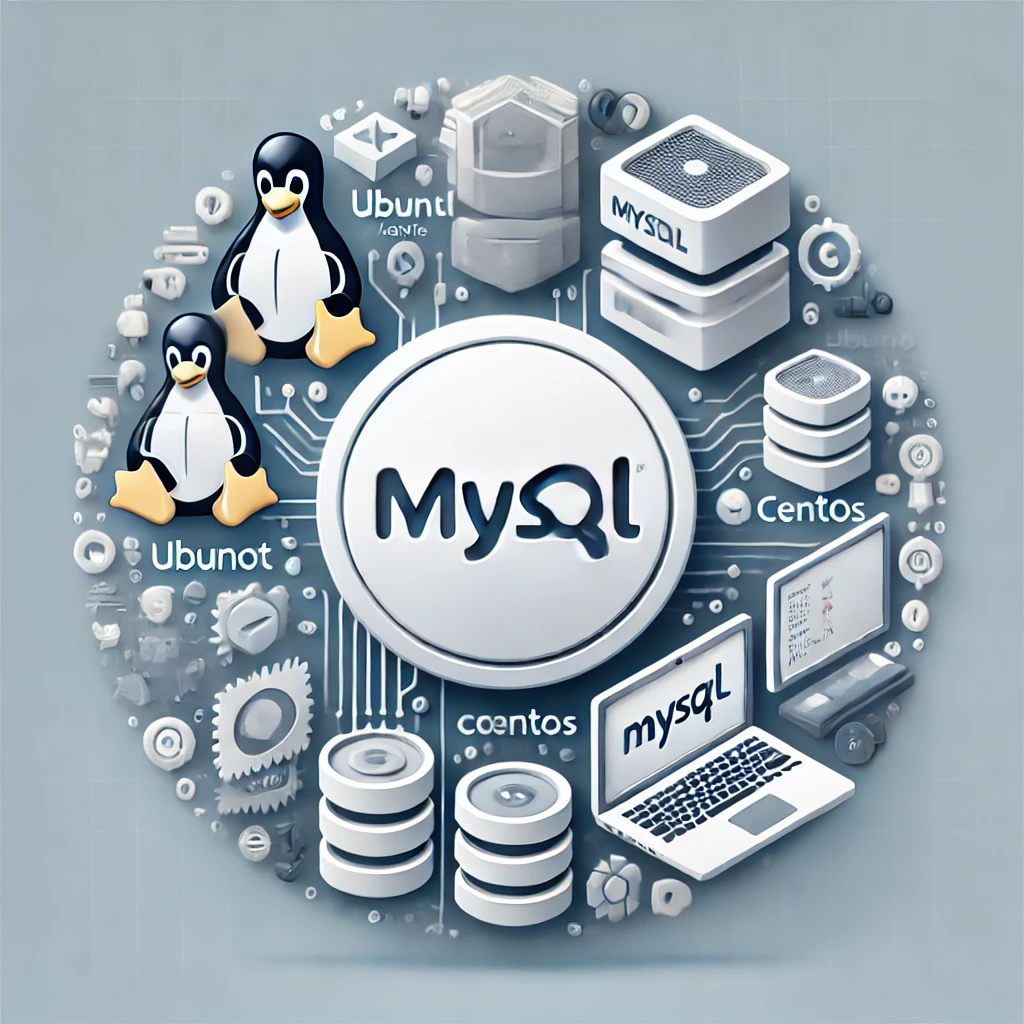
MySQL is an open-source Relational Database Management System (RDBMS) that is widely used, especially as the backend for web applications. It is commonly used in combination with programming languages such as PHP and Python. As free open-source software, MySQL is widely supported and adopted around the world.
Main Features of MySQL:
- Open-source and free: Can be used freely for both personal and commercial purposes.
- High performance: Capable of efficiently handling large-scale data processing with high reliability.
- Scalability: Can flexibly scale from small to large environments.
In this article, we will explain in detail how to install MySQL in Linux environments (Ubuntu and CentOS), and also introduce basic operations and common troubleshooting methods.
2. Prerequisites: Linux Environment Setup
Before installing MySQL, it is important to ensure that your Linux system is up to date. If the system is not updated, dependency or compatibility issues may occur.
2.1 Checking System Requirements
The basic requirements for installing MySQL are as follows:
- Memory: 512MB or more (1GB or more recommended)
- Disk space: At least 500MB
- OS version: Ubuntu 20.04 or later, CentOS 7 or later
2.2 Updating the System
To ensure a smooth installation process, it is recommended to update your system packages to the latest versions. Run the following commands to update your packages.
- For Ubuntu:
sudo apt update && sudo apt upgrade -y- For CentOS:
sudo yum update -y3. Installing MySQL on Ubuntu
3.1 Installation Using the APT Repository
Install MySQL through the APT repository. Use the following command to install the MySQL server.
sudo apt install mysql-server -y3.2 Strengthening Security Settings
After installation, run the mysql_secure_installation command to enhance security. This command allows you to set the root account password and disable unnecessary default settings.
sudo mysql_secure_installation3.3 Starting MySQL and Checking Status
Verify that the MySQL service has been properly installed and start the service. You can check using the following commands.
sudo systemctl start mysql
sudo systemctl status mysql
4. Installing MySQL on CentOS
4.1 Configuring the Yum Repository
On CentOS, you need to add the official MySQL repository. Run the following command to configure the repository.
sudo yum install https://dev.mysql.com/get/mysql80-community-release-el7-3.noarch.rpm4.2 Installing MySQL
After configuring the repository, install MySQL using the following command.
sudo yum install mysql-community-server4.3 Starting MySQL and Enabling Auto-Start
After installing MySQL, start the service and configure it to start automatically when the system boots.
sudo systemctl start mysqld
sudo systemctl enable mysqld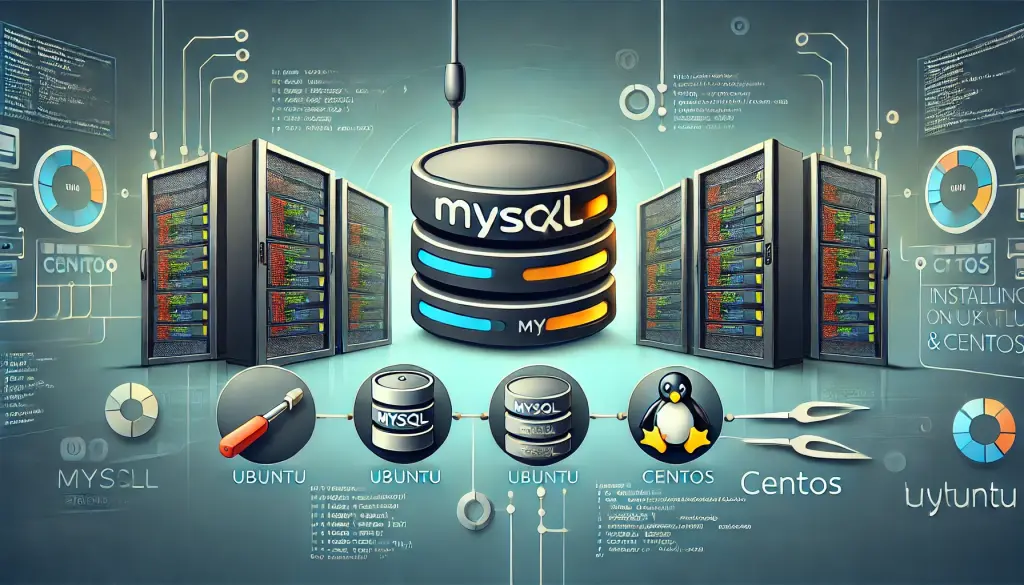
5. Basic Operations
After installing MySQL, you can perform basic operations such as creating databases and managing users.
5.1 Logging in to MySQL
To log in to MySQL, run the following command.
mysql -u root -p5.2 Creating a Database
To create a new database, use the following command.
CREATE DATABASE example_db;To verify that the database was created successfully, run the following command.
SHOW DATABASES;5.3 Creating a User and Allowing Remote Access
Create a new user and grant the necessary privileges to allow remote access.
CREATE USER 'new_user'@'%' IDENTIFIED BY 'password';
GRANT ALL PRIVILEGES ON *.* TO 'new_user'@'%';
6. Troubleshooting
6.1 MySQL Error 1045: Access Denied
If you encounter the error message “ERROR 1045: Access denied for user ‘root’@’localhost'” when attempting to log in to MySQL, try the following solutions.
- Use the correct password:
Make sure the password is correct. This error commonly occurs if therootuser password is incorrect. - Reset the root password:
If you have forgotten the password, start MySQL in safe mode and reset it.
sudo mysqld_safe --skip-grant-tables &
mysql -u root
ALTER USER 'root'@'localhost' IDENTIFIED BY 'new_password';- Check the port configuration:
Verify that MySQL is listening on the default port 3306. If there is an issue, correct the port configuration.
SHOW VARIABLES LIKE 'port';If necessary, modify the port settings and restart MySQL.
7. Conclusion
In this article, we explained how to install MySQL in a Linux environment, covering both Ubuntu and CentOS procedures. We also introduced basic operations and troubleshooting methods for common issues such as Error 1045. Use this guide to properly install and smoothly operate MySQL on your system.