

- 1 1. What You’ll Be Able to Do in This Article
- 2 2. Types of MySQL Imports and When to Use Each
- 3 3. Importing an SQL File (The Fastest Path to Success)
- 4 4. CSV Import (Most Important: Fastest with LOAD DATA)
- 5 5. Top 4 Reasons INFILE Fails (Most Important Section)
- 6 6. Import via GUI (Workbench / phpMyAdmin)
- 7 7. Troubleshooting (By Error: Cause → Fastest Fix)
- 8 8. Real-World Techniques for Large Datasets (Failure-Proof Operations)
- 8.1 8.1 Split the file and import in stages
- 8.2 8.2 Temporarily disable indexes and foreign keys
- 8.3 8.3 Control autocommit (speed-up)
- 8.4 8.4 Recommended settings for bulk loads
- 8.5 8.5 Increase timeouts
- 8.6 8.6 Staging table strategy (safe operations)
- 8.7 ✔ Most stable real-world pattern
- 8.8 ✔ Conclusion for large data
- 9 9. FAQ (Common Questions)
- 9.1 Q1. Can I import only specific columns from a CSV?
- 9.2 Q2. How do I treat blank cells as NULL?
- 9.3 Q3. How do I skip the header row?
- 9.4 Q4. How can I validate the import results?
- 9.5 Q5. Which method is the fastest?
- 9.6 Q6. I get a line-ending error on Windows
- 9.7 Q7. I get a secure_file_priv error
- 9.8 ✔ FAQ summary
- 10 10. Summary
1. What You’ll Be Able to Do in This Article
Many people searching for “MySQL data import” are in a situation where they want to:
- “restore a .sql file”
- “import a CSV”
- “it stops with an error”
- “it doesn’t work in Workbench or phpMyAdmin”
In other words, you want a solution you can apply right now.
First, here are the shortest “success paths” by goal.
🔹 Fastest command to import an SQL file (.sql)
For backup restores or server migration, this is the quickest.
mysql -u username -p database_name < backup.sqlThings to check beforehand
- Does the destination database exist?
- Does the connecting user have privileges for the target DB?
- The SQL file encoding (usually UTF-8)
If the database has not been created yet:
CREATE DATABASE example_db;🔹 Fastest way to import a CSV file (recommended)
For importing large data quickly, LOAD DATA is ideal.
LOAD DATA LOCAL INFILE '/path/to/example.csv'
INTO TABLE example_table
FIELDS TERMINATED BY ','
OPTIONALLY ENCLOSED BY '"'
LINES TERMINATED BY '\n'
IGNORE 1 LINES
(id, name, @age)
SET age = NULLIF(@age,'');
Key points
- Windows line endings →
'\r\n' - If there’s a header row →
IGNORE 1 LINES - Convert empty strings to NULL →
NULLIF() - Many environments require LOCAL (explained later)
🔹 If you want to import via GUI
MySQL Workbench
- Server → Data Import → select a file → run
phpMyAdmin
- Select the target DB → Import → choose a file → run
⚠ However, for large files and reliable error handling, CLI (command line) is more dependable.
🔹 3 must-check items before importing
1. Character set (most important)
SHOW VARIABLES LIKE 'character_set%';Recommended: utf8mb4
2. Settings that cause INFILE-related errors
SHOW VARIABLES LIKE 'local_infile';
SHOW VARIABLES LIKE 'secure_file_priv';
3. Privilege check
SHOW GRANTS FOR 'user'@'localhost';✔ What’s next in this article
- Detailed ways to import SQL files
- Practical CSV import techniques
- A complete breakdown of why INFILE fails
- Fastest fixes by error type
- Real-world techniques for large datasets
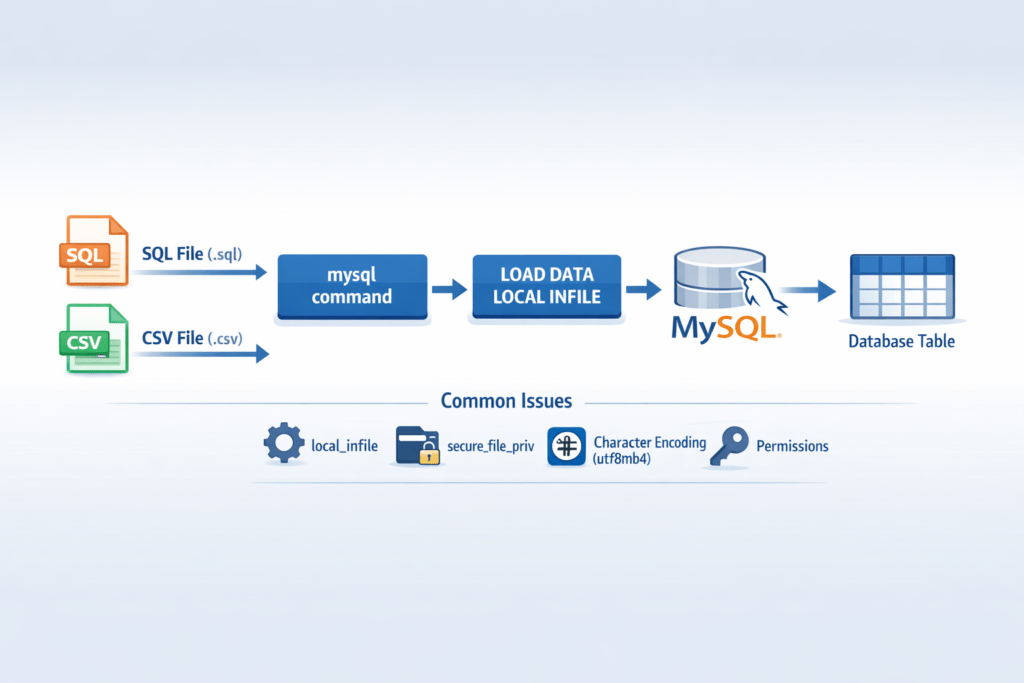
2. Types of MySQL Imports and When to Use Each
There are multiple ways to import into MySQL, but the best choice depends on your use case.
If you understand this correctly, you can avoid unnecessary trouble.
2.1 When to import an SQL dump (.sql)
Common use cases
- Restoring from a backup
- Server migration
- Applying production-like data to a dev environment
- Re-importing data exported with
mysqldump
Features
- Restores the entire table structure + data
- High reproducibility
- Can include transactions
- Generally the safest option
Typical methods
mysql -u user -p dbname < dump.sqlOr inside MySQL:
SOURCE /path/to/dump.sql;Best for
- Full restore of an existing DB
- Rebuilding a production environment
- Data loading for CI/CD environments
2.2 When to import CSV / TSV
Common use cases
- Receiving data from external systems
- Importing Excel data
- ETL processing
- Updating only specific tables
Features
- Loads data only (schema must exist separately)
- Fast (
LOAD DATAis extremely fast) - Allows transformation logic during import
Typical method
LOAD DATA LOCAL INFILE 'file.csv'
INTO TABLE table_name
FIELDS TERMINATED BY ','
LINES TERMINATED BY '\n';
Best for
- Scheduled batch jobs
- Data integration
- High-speed ingestion of large row counts
2.3 When to use GUI tools
Common tools:
- MySQL Workbench
- phpMyAdmin
Features
- Intuitive operation
- Beginner-friendly
- Suitable for small datasets
Cautions
- Upload limits (phpMyAdmin)
- Timeouts
- Unstable with large data
- Harder to analyze errors
2.4 Comparison by method (practical viewpoint)
| Method | Speed | Stability | Large-file support | Error analysis | Recommendation |
|---|---|---|---|---|---|
| mysql command | ◎ | ◎ | ◎ | ◎ | ★★★★★ |
| LOAD DATA | ◎ | ○ | ◎ | ○ | ★★★★★ |
| Workbench | ○ | ○ | △ | △ | ★★★ |
| phpMyAdmin | △ | △ | × | △ | ★★ |
✔ Recommended choices in real work
- Backup restore → mysql command
- High-speed CSV import → LOAD DATA LOCAL INFILE
- Small, one-off tasks → GUI
If you’re unsure, choosing the CLI (command line) is the most stable option.
3. Importing an SQL File (The Fastest Path to Success)
Importing a .sql file is the most common method for backup restores and server migrations.
Here, the goal is to “succeed as quickly as possible,” so we’ll focus only on the practical steps used in real work.
3.1 Restore in one line (the most common method)
This is the most reliable and fastest method.
mysql -u username -p database_name < backup.sqlAfter running it, you’ll be prompted for the password.
✔ Pre-checks (to prevent failure)
① Does the database exist?
SHOW DATABASES;If it doesn’t exist:
CREATE DATABASE example_db;② Does the user have privileges?
SHOW GRANTS FOR 'user'@'localhost';If privileges are missing:
GRANT ALL PRIVILEGES ON example_db.* TO 'user'@'localhost';
FLUSH PRIVILEGES;
③ File encoding
Usually it’s UTF-8.
If you see garbled characters, specify it explicitly.
mysql --default-character-set=utf8mb4 -u user -p dbname < backup.sql3.2 Run from inside MySQL (SOURCE command)
This method runs after you log into MySQL.
mysql -u user -p
USE example_db;
SOURCE /path/to/backup.sql;
When it’s useful
- When you want to run only part of an SQL file
- When you want to identify the exact error location
- When you want to visually confirm the execution log
3.3 Common failures and fixes
❌ ERROR 1049: Unknown database
→ The DB doesn’t exist
→ Run CREATE DATABASE
❌ ERROR 1045: Access denied
→ Insufficient privileges
→ Check with SHOW GRANTS
❌ It stops mid-way / error location is unclear
Fix:
- Check the beginning and end of the file
head backup.sql
tail backup.sql- Check the lines right before the error
- If the file is large, split and run it in parts
split -l 10000 backup.sql part_3.4 Tips to stabilize large SQL imports
① Check transaction settings
See whether SET autocommit=0; is included
② If foreign key constraints are the issue
SET FOREIGN_KEY_CHECKS=0;
-- import
SET FOREIGN_KEY_CHECKS=1;
③ Check SQL mode
SELECT @@sql_mode;Strict mode may be affecting the import.
✔ Practical recommendations
- Production restore → mysql command
- Debugging → SOURCE
- Large files → CLI + consider splitting
4. CSV Import (Most Important: Fastest with LOAD DATA)
When importing CSV data, the fastest and most practical method is LOAD DATA.
For large datasets, it’s overwhelmingly faster than INSERT statements.
Here, we’ll provide the correct “copy-paste and run” format and highlight common failure points.
4.1 First: CSV prerequisites
Before importing, be sure to check the following.
✔ Delimiter
- Comma
, - Tab
\t - Semicolon
;(common in overseas data)
✔ Quote character
- Whether values are enclosed like
"value"with double quotes
✔ Line endings
- Linux / Mac →
\n - Windows →
\r\n
✔ Character set / encoding
- Recommended:
utf8mb4 - CSV created on Windows may be Shift-JIS
- UTF-8 with BOM can sometimes cause errors
Example check:
file -i example.csv4.2 Copy-paste-ready basic form (CSV with header)
LOAD DATA LOCAL INFILE '/path/to/example.csv'
INTO TABLE example_table
FIELDS TERMINATED BY ','
OPTIONALLY ENCLOSED BY '"'
LINES TERMINATED BY '\n'
IGNORE 1 LINES
(id, name, @age)
SET age = NULLIF(@age,'');
Meaning of each option
LOCAL
Reads a file from the client side (required in many environments)IGNORE 1 LINES
Skips the header row@age
A temporary variable used to transform the value before storingNULLIF()
Converts empty strings to NULL
4.3 Import only the columns you need
If the CSV has unnecessary columns:
LOAD DATA LOCAL INFILE '/path/to/example.csv'
INTO TABLE example_table
FIELDS TERMINATED BY ','
LINES TERMINATED BY '\n'
(id, @dummy, age);
Map unwanted columns to @dummy.
4.4 Convert dates and types during import
Example: convert MM/DD/YYYY → MySQL format
LOAD DATA LOCAL INFILE '/path/to/example.csv'
INTO TABLE example_table
FIELDS TERMINATED BY ','
LINES TERMINATED BY '\n'
(@date_col, name)
SET date_col = STR_TO_DATE(@date_col, '%m/%d/%Y');
4.5 For tab-delimited (TSV)
FIELDS TERMINATED BY '\t'4.6 Improve performance further (for large data)
Temporarily disable indexes
ALTER TABLE example_table DISABLE KEYS;
-- Run LOAD DATA
ALTER TABLE example_table ENABLE KEYS;
Temporarily disable foreign keys
SET FOREIGN_KEY_CHECKS=0;
-- Run LOAD DATA
SET FOREIGN_KEY_CHECKS=1;
Why LOCAL is often required
LOAD DATA INFILE→ reads a file on the server sideLOAD DATA LOCAL INFILE→ reads a file on the client side
In many environments, using LOCAL has a higher success rate.
✔ Practical recommended form
In most cases:
LOAD DATA LOCAL INFILE
+ explicit delimiter
+ explicit line endings
+ IGNORE 1 LINES
+ type conversion
This is the most stable approach.
5. Top 4 Reasons INFILE Fails (Most Important Section)
Most LOAD DATA INFILE failures are caused by settings, privileges, or misunderstanding the source location.
If you understand this, you can resolve most errors immediately.
5.1 Difference between INFILE and LOCAL INFILE
This is the key basic concept.
| Command | Where it reads from | Typical use |
|---|---|---|
LOAD DATA INFILE | File on the server | A fixed path on the server |
LOAD DATA LOCAL INFILE | File on the client | A CSV on your local PC |
Common misunderstandings
- Trying to read a local PC file with
INFILEand failing - The file doesn’t exist on the server
✔ Quick rule of thumb
- CSV on your own PC →
LOCAL - CSV placed on the server →
INFILE
If unsure, using LOCAL is the safest choice.
5.2 local_infile is disabled (cause of ERROR 1148)
Example error:
ERROR 1148 (42000): The used command is not allowed with this MySQL versionCause:
local_infile is OFF
✔ Check the current setting
SHOW VARIABLES LIKE 'local_infile';✔ Enable it when connecting (client-side)
mysql --local-infile=1 -u user -p✔ Enable permanently (config file)
Add to my.cnf or my.ini:
[mysqld]
local_infile=1
You must restart the server.
5.3 secure_file_priv restriction
This occurs when using LOAD DATA INFILE (without LOCAL).
Check:
SHOW VARIABLES LIKE 'secure_file_priv';Example output
/var/lib/mysql-files/→ You can only read files inside this directory.
✔ Fix
- Move the CSV into the allowed directory
- Or use
LOCAL
5.4 Insufficient privileges (FILE privilege / OS permissions)
Example error:
ERROR 1045: Access deniedCheck:
SHOW GRANTS FOR 'user'@'localhost';✔ Required privilege
GRANT FILE ON *.* TO 'user'@'localhost';※ For security, operate with the least privileges possible.
5.5 Incorrect path specification
- Use an absolute path, not a relative path
- On Windows,
C:/path/file.csvis recommended - Forward slashes are safer than backslashes
✔ Fast troubleshooting flow for INFILE issues
- Did you add
LOCAL? SHOW VARIABLES LIKE 'local_infile';SHOW VARIABLES LIKE 'secure_file_priv';- Check privileges (SHOW GRANTS)
- Check the path (absolute path)
In this order, you can solve most cases.
6. Import via GUI (Workbench / phpMyAdmin)
The command line is the most stable, but there are situations where you want to use GUI tools.
Here, we’ll focus on the common points where people get stuck in real work.
6.1 Import with MySQL Workbench
Import an SQL file (backup restore)
- Launch Workbench
- Menu → Server → Data Import
- Select “Import from Self-Contained File”
- Select the
.sqlfile - Select the Target Schema (database)
- Click “Start Import”
Import CSV (per table)
- Right-click the target table
- Select Table Data Import Wizard
- Select the CSV file
- Set delimiter and whether there is a header
- Run
⚠ Common reasons Workbench gets stuck
- Large files (hundreds of MB or more)
- Timeouts
- Encoding mismatch
secure_file_privrestrictions
👉 For large files or production environments, CLI is recommended.
6.2 Import with phpMyAdmin
Steps
- Select the target database
- Open the “Import” tab
- Choose a file
- Select the format (SQL / CSV)
- Run
⚠ phpMyAdmin limitations
① Upload size limit
upload_max_filesizepost_max_size
Large files will fail.
② Timeout
max_execution_time
Long-running imports may stop mid-way.
③ Out of memory
memory_limit
6.3 When you should use GUI
- Small datasets (a few MB)
- Development environments
- Temporary one-off work
6.4 When you should use CLI (recommended)
- Production environments
- Tens of MB or more
- Large CSV imports
- When you need error analysis
- Server-to-server migrations
✔ Practical conclusion
GUI is “easy,” but
CLI is overwhelmingly better for stability, reproducibility, and large-file handling.
For troubleshooting, learning CLI operations is ultimately recommended.
7. Troubleshooting (By Error: Cause → Fastest Fix)
Most MySQL import errors are highly patterned.
Here, we’ll organize them in the order “cause → first action → verification command.”
7.1 ERROR 1148 (42000)
The used command is not allowed with this MySQL version
🔎 Cause
LOAD DATA LOCAL INFILEis disabledlocal_infileis OFF
✅ Fastest fix
① Check current settings
SHOW VARIABLES LIKE 'local_infile';② Enable when connecting (client-side)
mysql --local-infile=1 -u user -p③ Enable permanently (if needed)
[mysqld]
local_infile=1
→ Restart MySQL
7.2 ERROR 1366
Incorrect string value
🔎 Cause
- Encoding mismatch
- Inconsistency between utf8 and utf8mb4
- Shift-JIS mixed in
✅ Fastest fix
① Check current character set
SHOW VARIABLES LIKE 'character_set%';② Convert table to utf8mb4
ALTER TABLE example_table CONVERT TO CHARACTER SET utf8mb4;③ Specify it explicitly at import time
mysql --default-character-set=utf8mb4 -u user -p db < file.sql7.3 ERROR 1062
Duplicate entry
🔎 Cause
- Duplicate primary keys
- UNIQUE constraint violation
✅ Fix options
Option 1: Ignore duplicates
LOAD DATA LOCAL INFILE 'file.csv'
INTO TABLE example_table
IGNORE;
Option 2: Update on duplicate
INSERT INTO example_table (id, name)
VALUES (1,'John')
ON DUPLICATE KEY UPDATE name=VALUES(name);
Option 3: Use a staging table
CREATE TEMPORARY TABLE temp LIKE example_table;
-- LOAD into temp first
INSERT INTO example_table
SELECT * FROM temp;
7.4 ERROR 1045
Access denied for user
🔎 Cause
- Insufficient DB privileges
- Insufficient FILE privilege
- Insufficient OS permissions for the path
✅ Check
SHOW GRANTS FOR 'user'@'localhost';✅ Example required privileges
GRANT ALL PRIVILEGES ON example_db.* TO 'user'@'localhost';
FLUSH PRIVILEGES;
※ Be cautious when granting FILE privilege.
7.5 It stops mid-way on large files
🔎 Cause
- Timeout
- Out of memory
- PHP limits (phpMyAdmin)
✅ Fastest countermeasures
Increase timeouts
SET GLOBAL net_read_timeout=600;
SET GLOBAL net_write_timeout=600;
Split the file
split -l 100000 large.csv part_✔ Error resolution flow (fastest)
- Check encoding
- Check
local_infile - Check
secure_file_priv - Check privileges
- Check line endings (
\n/\r\n)
In this order, you can solve most issues.
8. Real-World Techniques for Large Datasets (Failure-Proof Operations)
When importing hundreds of thousands to millions of rows,
the usual methods can be slow, stop, or break.
Here are stable techniques commonly used in production.
8.1 Split the file and import in stages
Feeding huge CSV/SQL in one shot can cause memory and timeout problems.
✔ Linux / Mac
split -l 100000 large.csv part_→ Split into 100,000 lines per part
✔ Windows (PowerShell example)
Get-Content large.csv -TotalCount 100000 > part_1.csv✔ Benefits of staged imports
- Easier to retry after a partial failure
- Easier to pinpoint the error location
- More stable server load
8.2 Temporarily disable indexes and foreign keys
During import, index updates often become the bottleneck.
✔ Temporarily disable indexes
ALTER TABLE example_table DISABLE KEYS;
-- LOAD DATA
ALTER TABLE example_table ENABLE KEYS;
※ Mainly for MyISAM. Limited effect for InnoDB.
✔ Disable foreign keys
SET FOREIGN_KEY_CHECKS=0;
-- import
SET FOREIGN_KEY_CHECKS=1;
8.3 Control autocommit (speed-up)
SET autocommit=0;
-- LOAD DATA
COMMIT;
SET autocommit=1;
8.4 Recommended settings for bulk loads
SET UNIQUE_CHECKS=0;
SET FOREIGN_KEY_CHECKS=0;
SET AUTOCOMMIT=0;
After import:
COMMIT;
SET UNIQUE_CHECKS=1;
SET FOREIGN_KEY_CHECKS=1;
SET AUTOCOMMIT=1;
⚠ Use carefully in production.
8.5 Increase timeouts
SET GLOBAL net_read_timeout=600;
SET GLOBAL net_write_timeout=600;
8.6 Staging table strategy (safe operations)
Instead of importing directly into the production table, use a validation table first.
CREATE TABLE staging LIKE example_table;
LOAD DATA LOCAL INFILE 'file.csv' INTO TABLE staging;
After validation:
INSERT INTO example_table
SELECT * FROM staging;
✔ Most stable real-world pattern
- Load into a staging table
- Check row counts
- Validate constraints
- Apply to production
- Save logs
✔ Conclusion for large data
- Use CLI whenever possible
- Split imports
- Go through staging
- Temporarily disable constraints
- Check logs
This will keep imports stable even at millions of rows.
9. FAQ (Common Questions)
Here are quick, practical answers to frequently searched MySQL import questions.
Q1. Can I import only specific columns from a CSV?
Yes, you can.
You can map unnecessary columns to a variable (such as @dummy) and ignore them.
LOAD DATA LOCAL INFILE '/path/to/example.csv'
INTO TABLE example_table
FIELDS TERMINATED BY ','
LINES TERMINATED BY '\n'
(id, @dummy, age);
If you want only certain columns, be sure to explicitly specify the column order.
Q2. How do I treat blank cells as NULL?
Use NULLIF().
LOAD DATA LOCAL INFILE '/path/to/example.csv'
INTO TABLE example_table
FIELDS TERMINATED BY ','
LINES TERMINATED BY '\n'
(name, @age)
SET age = NULLIF(@age,'');
This converts empty strings (”) to NULL.
Q3. How do I skip the header row?
IGNORE 1 LINESExample:
LOAD DATA LOCAL INFILE '/path/to/example.csv'
INTO TABLE example_table
FIELDS TERMINATED BY ','
LINES TERMINATED BY '\n'
IGNORE 1 LINES;
Q4. How can I validate the import results?
✔ Check row counts
SELECT COUNT(*) FROM example_table;✔ Check for warnings/errors
Check MySQL warnings:
SHOW WARNINGS;✔ Staging table strategy (recommended)
Load into a staging table first, then apply to production.
Q5. Which method is the fastest?
Conclusion:
- CSV → LOAD DATA LOCAL INFILE (fastest)
- Backup restore → mysql command
GUI is convenient, but CLI wins for speed and stability.
Q6. I get a line-ending error on Windows
It’s due to line endings.
Windows:
LINES TERMINATED BY '\r\n'Linux / Mac:
LINES TERMINATED BY '\n'Q7. I get a secure_file_priv error
Check:
SHOW VARIABLES LIKE 'secure_file_priv';Fix:
- Put the CSV in the permitted directory
- Or use
LOCAL
✔ FAQ summary
- Column mapping →
@dummy - NULL conversion →
NULLIF - Skip header →
IGNORE 1 LINES - High-speed import →
LOAD DATA - Top “stuck” points →
local_infile/secure_file_priv/ encoding
10. Summary
MySQL imports may look complex at first, but
once organized by goal, they’re very straightforward.
Let’s recap the shortest success paths.
✔ Restore an SQL file (.sql)
Fastest and most stable:
mysql -u user -p dbname < backup.sql- Check whether the DB exists
- Check privileges
- Recommend
utf8mb4for encoding
✔ Import CSV (fast)
Basic form:
LOAD DATA LOCAL INFILE '/path/to/file.csv'
INTO TABLE table_name
FIELDS TERMINATED BY ','
OPTIONALLY ENCLOSED BY '"'
LINES TERMINATED BY '\n'
IGNORE 1 LINES;
Key points:
- Windows line endings →
\r\n - Empty strings →
NULLIF() - If it fails, check
local_infile
✔ Troubleshooting check order
- Encoding (recommend utf8mb4)
SHOW VARIABLES LIKE 'local_infile';SHOW VARIABLES LIKE 'secure_file_priv';- Privileges (SHOW GRANTS)
- Line endings
In this order, you can resolve most issues.
✔ Golden rules for large datasets
- Use CLI
- Split imports
- Go through a staging table
- Temporarily disable foreign keys/constraints
- Check logs
✔ Final conclusion
- Backup restore → mysql command
- High-speed CSV import → LOAD DATA LOCAL INFILE
- Small one-off tasks → GUI
If you’re unsure, using the CLI is the most stable choice.
With this, you now have a complete set of knowledge for MySQL imports.
Try it in your environment and build a stable operational workflow.