
- 1 1. [Quick Answer] MySQL User Password Change Command List (Fastest Solution)
- 2 2. MySQL Users and Hosts Basics (Prevent Common “Stuck” Issues)
- 3 3. Recommended Procedure: Change Safely with ALTER USER (Works for MySQL 8.0 / 5.7)
- 4 4. Differences Between MySQL 8.0 and 5.7
- 5 5. Recovering a Forgotten root Password (Security-Focused Procedure)
- 6 6. Common Errors and Solutions (Capture Traffic by Error Message)
- 7 7. Security Operations: Password Policies and Best Practices
- 8 8. FAQ (Frequently Asked Questions)
- 8.1 8.1 Q. What happens to active sessions after changing a password?
- 8.2 8.2 Q. I changed the password but still cannot log in
- 8.3 8.3 Q. Can I allow only a specific user to change passwords?
- 8.4 8.4 Q. Is the method the same in MariaDB?
- 8.5 8.5 Q. Can I check password change history?
- 8.6 8.6 Q. Can I recover non-root users with –skip-grant-tables?
- 9 9. Summary
1. [Quick Answer] MySQL User Password Change Command List (Fastest Solution)
The basic command to change a user’s password in MySQL is ALTER USER.
This method is recommended in MySQL 5.7 and later, and it is used the same way in MySQL 8.0.
1.1 Basic syntax (most commonly used)
ALTER USER 'username'@'localhost' IDENTIFIED BY 'newpassword';username: the target user name to updatelocalhost: the client host (a MySQL account is identified by “user name + host”)newpassword: the new password
After execution, the change takes effect immediately. In most cases, FLUSH PRIVILEGES; is not required (ALTER USER automatically updates the privilege tables).
Common pitfalls
- Even with the same user name,
@'localhost'and@'%'are treated as different accounts - Symbols in passwords must be enclosed in single quotes
1.2 Changing a remote access user (%)
ALTER USER 'username'@'%' IDENTIFIED BY 'newpassword';% means “any host.”
It’s commonly used in cloud environments or for users allowed to connect from outside.
Notes
- It’s safer to check in advance with
SELECT User, Host FROM mysql.user; - If you change the password for the wrong Host, you won’t be able to log in
1.3 Change password while specifying the authentication plugin (important in 8.0)
In MySQL 8.0, the default authentication plugin is caching_sha2_password.
If you can’t connect with older clients, explicitly set the plugin.
ALTER USER 'username'@'localhost'
IDENTIFIED WITH mysql_native_password
BY 'newpassword';mysql_native_password: legacy method (prioritizes compatibility)caching_sha2_password: MySQL 8.0 standard (recommended)
Typical mistakes
- Older PHP or clients may not support the MySQL 8.0 default plugin
- Deciding “I can’t log in” without checking the authentication plugin
1.4 If you get a privilege error
Error example:
ERROR 1227 (42000): Access denied; you need (at least one of) the SYSTEM_USER privilege(s)In this case, the currently logged-in user does not have permission to make the change.
Check:
SHOW GRANTS FOR CURRENT_USER();Run the command as root or as a user with sufficient privileges.
1.5 How to verify after changing
SELECT User, Host, plugin FROM mysql.user WHERE User='username';- Check the authentication plugin via the
plugincolumn - The most reliable check is to actually log in and confirm connectivity
1.6 What happens to existing sessions
After changing a password:
- New connections must use the new password
- Existing sessions may be terminated immediately depending on the environment
- In production, it’s recommended to perform changes outside business hours
2. MySQL Users and Hosts Basics (Prevent Common “Stuck” Issues)
In MySQL, a user is not identified by just a “user name.” Instead, it’s identified by the combination of “user name + client host (Host)”.
If you don’t understand this, you can run into the classic problem: “I changed the password but I still can’t log in.”
2.1 A user is a “user@host” pair
Examples:
'appuser'@'localhost''appuser'@'%''appuser'@'192.168.1.%'
These are all treated as different accounts.
So even if you change the password for localhost, it does not affect the % account.
Check command:
SELECT User, Host FROM mysql.user ORDER BY User, Host;Common pitfalls
- Not realizing there are multiple accounts with the same user name
- You changed the password for
localhost, but you’re actually logging in via TCP (127.0.0.1)
2.2 localhost and 127.0.0.1 are treated differently
In MySQL:
localhost→ UNIX socket connection (local internal connection)127.0.0.1→ TCP/IP connection
Depending on the environment, a different account may match.
Check:
mysql -u username -p -h 127.0.0.1If you can’t log in with the above, the @'127.0.0.1' account may not exist.
2.3 Check the currently authenticated user
It’s important to understand “which account you are authenticated as.”
SELECT CURRENT_USER();This displays the “user@host” that was actually authenticated.
SELECT USER(); shows the connection request information, so it may not match.
2.4 Check privileges (SHOW GRANTS)
If you can’t change a password, insufficient privileges may be the cause.
SHOW GRANTS FOR 'username'@'host';Or for the currently logged-in user:
SHOW GRANTS FOR CURRENT_USER();Minimum required privileges
ALTER USER- Or
SYSTEM_USER(MySQL 8.0 and later)
2.5 Typical failure patterns
- You changed the password for the wrong Host
- The authentication plugin differs (very common in 8.0)
- The target account doesn’t exist in the first place
Check whether the user exists:
SELECT User, Host FROM mysql.user WHERE User='username';Once you understand this model, you can avoid most password-change related problems.
3. Recommended Procedure: Change Safely with ALTER USER (Works for MySQL 8.0 / 5.7)
In MySQL 5.7 and later, changing passwords with ALTER USER is the standard and recommended approach.
Direct updates like UPDATE mysql.user can behave differently depending on the version and carry future compatibility risks, so it’s best to avoid them.
3.1 Pre-checks (Always confirm before changing)
Before changing a password, confirm these three items.
① Confirm the target user and Host
SELECT User, Host FROM mysql.user WHERE User='username';- Check whether multiple accounts exist with the same user name
- Don’t confuse
localhostwith%
② Confirm the current authentication plugin (important in 8.0)
SELECT User, Host, plugin
FROM mysql.user
WHERE User='username';caching_sha2_password(MySQL 8.0 standard)mysql_native_password(legacy plugin)
Some connection failures are caused by the authentication plugin.
③ Confirm the currently authenticated user
SELECT CURRENT_USER();To avoid privilege errors, run the commands as root or as a user with appropriate privileges.
3.2 Run ALTER USER (standard form)
ALTER USER 'username'@'localhost'
IDENTIFIED BY 'NewStrongPassword123!';
The change takes effect immediately.
In most cases, FLUSH PRIVILEGES; is not required.
Notes
- If the password policy (
validate_password) is violated,ERROR 1819may occur - If the password includes special characters, always enclose it in single quotes
3.3 Change while specifying the authentication plugin (only if needed)
If you are using older clients in a MySQL 8.0 environment:
ALTER USER 'username'@'localhost'
IDENTIFIED WITH mysql_native_password
BY 'NewStrongPassword123!';
Cases where you should change it:
- Cannot connect with old PHP / old MySQL clients
- An environment that does not support
caching_sha2_password
Cases where you should NOT change it:
- If you can already connect without issues in a modern environment (the standard plugin is safer)
3.4 Post-change verification
① Verify the authentication plugin
SELECT User, Host, plugin
FROM mysql.user
WHERE User='username';
② Verify by actually logging in
mysql -u username -pAlways test that you can log in.
3.5 Impact on existing sessions
After changing a password:
- New connections → must use the new password
- Existing connections → may remain depending on the environment
- Production → application connection restart may be required
Common mistakes
- Not updating the application’s connection credentials
- Old passwords still remaining in configuration files
3.6 Safe operational tips for production
- Perform changes outside business hours
- Check application configuration files in advance
- Do the work without disconnecting your SSH session
- When changing root, ensure you have a recovery method ready
4. Differences Between MySQL 8.0 and 5.7
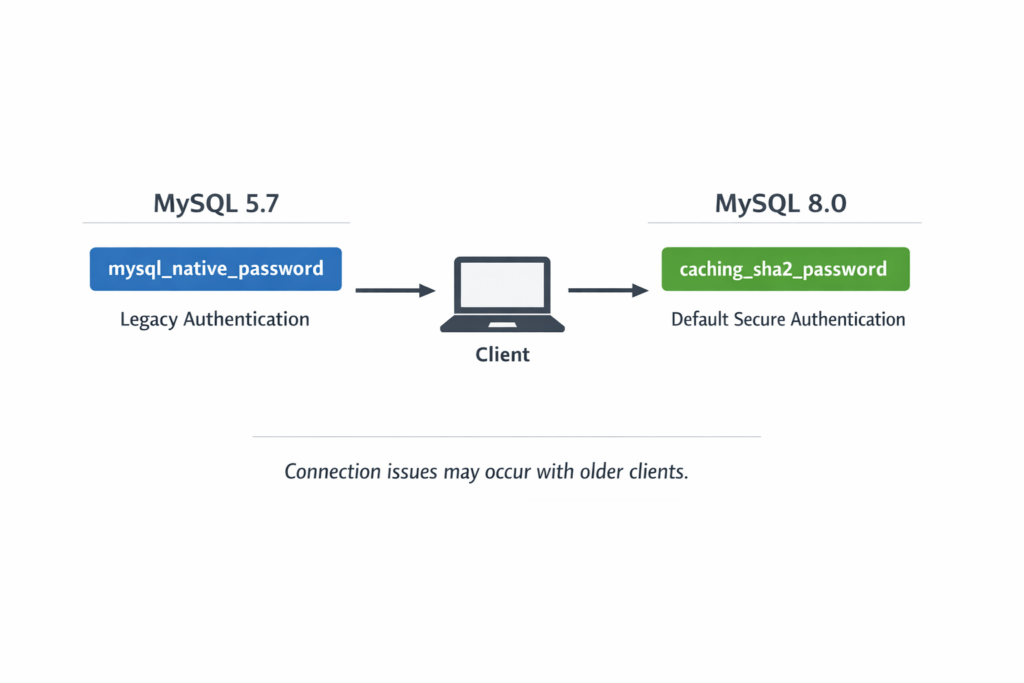
The biggest cause of trouble when changing MySQL passwords is the difference in authentication methods between MySQL 8.0 and 5.7.
In particular, many “I changed it but I can’t log in” cases are caused by differences in the authentication plugin.
4.1 Default authentication plugin differences
| Version | Default authentication plugin |
|---|---|
| MySQL 5.7 | mysql_native_password |
| MySQL 8.0 | caching_sha2_password |
In MySQL 8.0, caching_sha2_password became the standard for stronger security.
However, older clients (older PHP versions, older MySQL connectors, etc.) may not support it.
How to check:
SELECT User, Host, plugin
FROM mysql.user
WHERE User='username';
Common issues
- Old clients cannot connect to users created on MySQL 8.0
- Even if an error occurs, you don’t realize the root cause is the authentication plugin
4.2 How to switch the authentication plugin for compatibility
Only when you must connect from an older environment, change it like this:
ALTER USER 'username'@'localhost'
IDENTIFIED WITH mysql_native_password
BY 'NewStrongPassword123!';
After changing it, always run a connection test.
Notes
- From a security standpoint,
caching_sha2_passwordis safer - Don’t switch to the legacy plugin unnecessarily
- If possible, updating the client side is preferable
4.3 Direct UPDATE is not recommended
In MySQL 5.7 and earlier, methods like the following were used:
UPDATE mysql.user
SET authentication_string=PASSWORD('newpassword')
WHERE User='username';
FLUSH PRIVILEGES;
However, this approach is:
- Highly version-dependent
- Subject to specification changes in 8.0
- Likely to be deprecated in the future
Rule of thumb: use ALTER USER
4.4 Behavior differences of the validate_password plugin
In MySQL 5.7 and 8.0, password policy (strength checking) features are available by default.
Check:
SHOW VARIABLES LIKE 'validate_password%';If you violate the policy, you may get:
ERROR 1819 (HY000).
Because many 8.0 environments enforce stricter security baselines,
after upgrading from 5.7, you may find that password changes no longer pass due to stronger policy requirements.
4.5 How to check your version
If you’re not sure which version you’re running:
SELECT VERSION();If you apply fixes without confirming the version, you may end up using the wrong method
5. Recovering a Forgotten root Password (Security-Focused Procedure)
If you forget the MySQL root user (administrator) password, you cannot log in normally.
In this case, you must temporarily disable the grant tables and reset the password. However, this procedure carries security risks, so follow the steps carefully.
5.1 Confirm whether you really need the root password
First, check the following:
- Whether you have OS-level
sudoprivileges - Whether
auth_socketauthentication is enabled (common on Ubuntu-based systems)
Example check:
SELECT User, Host, plugin
FROM mysql.user
WHERE User='root';
If the plugin is auth_socket, you may be able to log in as the OS root user.
sudo mysqlIf this works, you only need to reset the password.
5.2 Recovery flow (general procedure)
① Stop the MySQL server
sudo systemctl stop mysql② Start with grant tables disabled
sudo mysqld_safe --skip-grant-tables &--skip-grant-tables disables authentication.
In this state, anyone can connect, so complete the procedure quickly.
③ Connect to MySQL
mysql -u rootYou can connect without a password.
④ Reset the root password (recommended method)
ALTER USER 'root'@'localhost'
IDENTIFIED BY 'NewStrongPassword123!';
Important
- Do NOT directly use
UPDATE mysql.user - Use
ALTER USER(for version compatibility)
⑤ Re-enable the grant tables
FLUSH PRIVILEGES;⑥ Restart MySQL in normal mode
sudo systemctl restart mysqlThen verify normal login:
mysql -u root -p5.3 Common mistakes
- Leaving
--skip-grant-tablesenabled (serious security risk) - Accidentally changing the root Host
- Changing the authentication plugin incorrectly and locking yourself out
5.4 Notes for production environments
- Always perform this during a maintenance window on public servers
- Keep your SSH session active while working
- Create a backup in advance if possible
Root password recovery can be done safely if executed carefully.
6. Common Errors and Solutions (Capture Traffic by Error Message)
Several typical errors occur when changing MySQL passwords.
Below, we organize common causes and solutions by frequently searched error codes.
6.1 ERROR 1819 (Password does not meet policy requirements)
Error example:
ERROR 1819 (HY000): Your password does not satisfy the current policy requirementsCause
The password failed the strength validation enforced by the validate_password plugin.
Check current policy
SHOW VARIABLES LIKE 'validate_password%';Important settings:
validate_password.lengthvalidate_password.policyvalidate_password.mixed_case_countvalidate_password.number_countvalidate_password.special_char_count
Solution ① (Recommended): Use a stronger password
- At least 12 characters
- Include uppercase, lowercase, numbers, and symbols
- Avoid dictionary words
Solution ② (Temporarily relax policy)
SET GLOBAL validate_password.policy = LOW;After completing your task, it’s recommended to restore the original setting.
Common mistakes
- Leaving the policy relaxed in production
- Overlooking that changing this setting requires SUPER privileges
6.2 ERROR 1227 (Insufficient privileges)
Error example:
ERROR 1227 (42000): Access denied; you need (at least one of) the SYSTEM_USER privilege(s)Cause
The current user lacks the ALTER USER or SYSTEM_USER privilege.
Check privileges
SHOW GRANTS FOR CURRENT_USER();Solution
Run the command as root or as a user with sufficient privileges.
If necessary:
GRANT ALTER USER ON *.* TO 'username'@'host';
FLUSH PRIVILEGES;
Note
- In MySQL 8.0,
SYSTEM_USERprivilege may also be required - Follow the principle of least privilege in production
6.3 Cannot log in after changing the password
Main causes
- Wrong Host
- Authentication plugin mismatch
- Client incompatibility
- Application configuration not updated
① Check Host
SELECT User, Host FROM mysql.user WHERE User='username';② Check authentication plugin
SELECT plugin FROM mysql.user WHERE User='username';③ Change authentication plugin (if necessary)
ALTER USER 'username'@'localhost'
IDENTIFIED WITH mysql_native_password
BY 'NewStrongPassword123!';
④ Check application configuration
.envconfig.php- Connection string (DSN)
Common mistakes
- Changing MySQL but not updating the application
- Not restarting containers in Docker environments
6.4 Still able to log in with the old password after change
Normally, changes made with ALTER USER take effect immediately.
Possible causes:
- You actually changed a different Host account
- The connection is pointing to another server (replica)
- Session caching
Check:
SELECT CURRENT_USER();It’s critical to accurately confirm both the connected server and the authenticated user.
7. Security Operations: Password Policies and Best Practices
Changing a password is not a one-time task.
In real-world operations, you maintain security by combining strength enforcement, privilege design, and operational rules.
7.1 Using the validate_password plugin
MySQL provides built-in functionality to enforce password strength.
Check current settings
SHOW VARIABLES LIKE 'validate_password%';Main configuration parameters
validate_password.length(minimum length)validate_password.policy(LOW / MEDIUM / STRONG)validate_password.mixed_case_countvalidate_password.number_countvalidate_password.special_char_count
Example configuration (minimum 12 characters, MEDIUM policy)
SET GLOBAL validate_password.length = 12;
SET GLOBAL validate_password.policy = MEDIUM;
Note
- GLOBAL changes may reset after a restart
- To persist settings, configure them in the configuration file (
my.cnf/my.ini)
7.2 Minimum requirements for strong passwords
Recommended standards in practice:
- At least 12 characters
- Include uppercase, lowercase, numbers, and symbols
- Avoid dictionary words
- Do not reuse across other services
Example:
X9v!pQ4z#Lm2Examples to avoid
password123
mysql2025
companyname!
7.3 More important than periodic changes
More important than “changing every six months” is designing under the assumption of potential credential leakage.
① Separate application users
- Do not use root in applications
- Create least-privilege users
Example:
GRANT SELECT, INSERT, UPDATE ON dbname.* TO 'appuser'@'localhost';② Minimize privileges (Principle of Least Privilege)
Allow only necessary operations to limit potential damage.
③ Use auditing and logs
Example log check:
tail -f /var/log/mysql/mysql.logMySQL Enterprise also supports audit plugins.
7.4 Operational tips for production environments
- Test in staging before making production changes
- Track change history (Git or documentation)
- Always run a connection test after changes
- Keep your SSH session active while working
7.5 Things you must never do
- Use the root account in applications
- Hard-code passwords in source code
- Disable
validate_passwordand leave it that way - Leave the server running with
--skip-grant-tables
Password management is not a one-off task but part of continuous operational design.
8. FAQ (Frequently Asked Questions)
8.1 Q. What happens to active sessions after changing a password?
A. In principle, new connections require the new password.
For existing sessions, they may either be terminated immediately or remain active depending on the environment and configuration.
In practice:
- Perform changes outside business hours in production
- Restart the application to refresh connections
is recommended.
8.2 Q. I changed the password but still cannot log in
The three most common causes are:
- Wrong Host (
localhostvs%, etc.) - Authentication plugin mismatch (very common in 8.0)
- Application configuration not updated
Check with:
SELECT User, Host, plugin
FROM mysql.user
WHERE User='username';
Pay special attention to the plugin column.
8.3 Q. Can I allow only a specific user to change passwords?
Yes.
GRANT ALTER USER ON *.* TO 'username'@'host';
FLUSH PRIVILEGES;
In MySQL 8.0, the SYSTEM_USER privilege may also be required.
SHOW GRANTS FOR 'username'@'host';Use this to verify privileges.
8.4 Q. Is the method the same in MariaDB?
Basically, ALTER USER is available, but:
- Authentication plugins
- Password policy behavior
- Version-specific differences
may differ depending on the environment.
Check with:
SELECT VERSION();MySQL Community Edition does not provide built-in password history tracking by default.
8.5 Q. Can I check password change history?
Possible approaches:
- Enable audit logging
- Use external log management
- Track history in operational documentation
Example:
tail -f /var/log/mysql/mysql.log8.6 Q. Can I recover non-root users with –skip-grant-tables?
Yes, but it creates a highly dangerous state.
Always return to normal mode immediately after completing the procedure.
9. Summary
Changing a MySQL password may look simple, but without understanding the user@host model, authentication plugins, and privilege design, it can easily lead to problems.
The key points from this article are:
9.1 Use ALTER USER as the standard method
ALTER USER 'username'@'localhost'
IDENTIFIED BY 'NewStrongPassword123!';- Standard method in MySQL 5.7 and later
- Direct
UPDATE mysql.useris not recommended FLUSH PRIVILEGESis usually unnecessary
9.2 Users are managed as “user@host”
localhostand%are different accounts- Multiple accounts with the same user name may exist
- Check with
SELECT User, Host FROM mysql.user;
9.3 Pay attention to authentication plugins in 8.0
- 8.0 default:
caching_sha2_password - Legacy compatibility:
mysql_native_password - If you cannot connect, check the
plugincolumn
SELECT plugin FROM mysql.user WHERE User='username';9.4 Be careful when recovering the root password
--skip-grant-tablesis a temporary measure only- Always return to normal mode after finishing
- Perform during a maintenance window in production
9.5 Most errors have clear causes
- ERROR 1819 → Password policy violation
- ERROR 1227 → Insufficient privileges
- Cannot log in → Host mismatch or authentication plugin mismatch
9.6 In practice, least privilege and operational design matter most
- Do not use root in applications
- Create dedicated users
- Enforce strong password policies
- Always test connections after changes
MySQL password management is not just about changing a value—it is the foundation of secure database operations.
Choose the appropriate method for your environment and execute it carefully.