- 1 1. Basic Steps to Use nslookup on Ubuntu
- 2 2. Basic nslookup Usage (Get Results Fast)
- 3 3. How to Investigate by Specifying a DNS Server
- 4 4. How to Check Specific Records (MX, NS, TXT, etc.)
- 5 5. What to Do If nslookup Doesn’t Work or the Results Are Incorrect
- 5.1 5.1 Check Your Network Connection
- 5.2 5.2 Check Connectivity Using a Domain Name
- 5.3 5.3 Check DNS Configuration
- 5.4 5.4 Check the Status of systemd-resolved
- 5.5 5.5 Notes When Using a VPN
- 5.6 5.6 Name Resolution Issues in Docker Environments
- 5.7 5.7 Common Error Summary
- 5.8 5.8 Basic Troubleshooting Flow
- 6 6. Differences Between nslookup and dig (Intermediate Notes)
- 7 7. Summary: Using nslookup Safely on Ubuntu
- 8 FAQ
- 8.1 Q1. I see “nslookup: command not found” on Ubuntu
- 8.2 Q2. What does “Non-authoritative answer” mean?
- 8.3 Q3. Why do I see NXDOMAIN?
- 8.4 Q4. What causes SERVFAIL?
- 8.5 Q5. Why aren’t DNS changes reflected immediately?
- 8.6 Q6. Should I use nslookup or dig?
- 8.7 Q7. Why do I only see IPv6 addresses?
- 8.8 Q8. Why do results change when I use a VPN?
1. Basic Steps to Use nslookup on Ubuntu
If you want to use nslookup on Ubuntu, the first thing to check is whether the command is available. nslookup is a command used to query DNS (the system that converts domain names into IP addresses), and it’s commonly used for network checks and troubleshooting.
Depending on your Ubuntu version and environment, it may not be installed by default. In that case, you’ll need to install it manually.
1.1 What Is nslookup? (Beginner-Friendly Explanation)
nslookup stands for “Name Server Lookup.” It queries DNS servers to retrieve information about domain names and IP addresses.
Common use cases include:
- Find an IP address from a domain name (forward lookup)
- Find a domain name from an IP address (reverse lookup)
- Check records such as MX records (mail server information)
A similar command is dig, but nslookup’s output is relatively simple and beginner-friendly. For advanced analysis, dig is often used instead.
1.2 How to Check Whether nslookup Is Available on Ubuntu
First, open a terminal and run the following command:
nslookup
If you see an error like this:
Command 'nslookup' not found
→ nslookup is not installed.
1.3 How to Install nslookup
On Ubuntu, nslookup is included in the dnsutils package. Install it using the steps below.
Steps
- Update package information
sudo apt update
- Install dnsutils
sudo apt install dnsutils
- Verify the installation
nslookup -version
If version information is displayed, the installation was successful.
1.4 Common Pitfalls and Notes
If you don’t have sudo privileges
You can’t install packages as a standard user. Administrator privileges are required.
Skipping apt update
If you install with outdated package metadata, the installation may fail.
Offline environments
apt install requires a network connection.
If you’re on WSL
On Windows Subsystem for Linux, network settings may depend on Windows. If name resolution is unstable, also check DNS settings on the Windows side.
2. Basic nslookup Usage (Get Results Fast)
Basic nslookup usage is very straightforward. The most common intent is “I want to check a domain’s IP address” or “I want to confirm that DNS resolution is working.” This section explains the quickest ways to check and how to read the output.
2.1 Find an IP Address from a Domain (Forward Lookup)
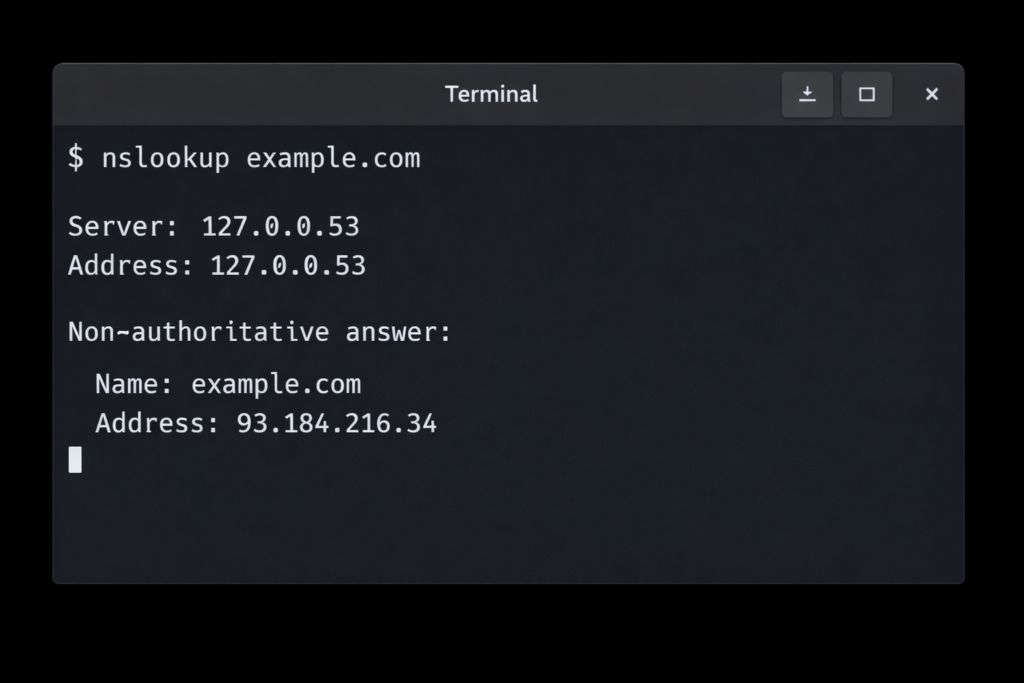
The most basic use is to specify a domain name.
nslookup example.com
When you run it, you’ll see output like the following (details vary by environment):
Server:         127.0.0.53
Address:        127.0.0.53#53

Non-authoritative answer:
Name:   example.com
Address: 93.184.216.34
How to read the output
- Server / Address → The DNS server used for the query. On Ubuntu,
127.0.0.53is commonly shown. This indicates systemd-resolved (a local DNS management service). - Non-authoritative answer → This means the answer came from a caching DNS server rather than an authoritative DNS server (the official source). In most cases, this is normal.
- Address → The actual IP address (IPv4). Depending on your environment, you may also see IPv6 (AAAA records).
2.2 Find a Domain from an IP Address (Reverse Lookup)
You can also look up a domain name from an IP address.
nslookup 8.8.8.8
Example:
Non-authoritative answer:
8.8.8.8.in-addr.arpa name = dns.google.
This result comes from a PTR record (a DNS record used for reverse lookups).
Notes
- Not all IP addresses have reverse DNS configured.
- If reverse DNS is not set up, you won’t get a result.
2.3 Common Failures and Causes
SERVFAIL is displayed
This may indicate a DNS server-side issue or a network problem.
NXDOMAIN is displayed
The domain does not exist or is not registered in DNS.
The result is different from what you expect
- Local DNS cache is affecting the result
- DNS is being switched while connected to a VPN
- Corporate/internal DNS is taking priority
2.4 Basic Check Flow to Confirm DNS Resolution
A simple flow to verify whether name resolution is correct:
- Verify direct IP connectivity
ping 8.8.8.8
- Verify name resolution
nslookup google.com
If the IP works but the domain fails → it’s likely a DNS configuration issue.
3. How to Investigate by Specifying a DNS Server
When troubleshooting name resolution issues, it’s important to know which DNS server was queried. Depending on the environment, Ubuntu may automatically use a local DNS resolver, your ISP’s DNS, a VPN-provided DNS, and more. That’s why explicitly specifying a particular DNS server helps you pinpoint the root cause.
3.1 Query a Domain Using a Specific DNS Server
The basic syntax is as follows:
nslookup <domain> <DNS-server-IP>
Example: Specify Google Public DNS
nslookup example.com 8.8.8.8
Commonly Used DNS Servers
- 8.8.8.8 (Google Public DNS)
- 1.1.1.1 (Cloudflare DNS)
- ISP-provided DNS (varies by provider/contract)
Typical Use Cases
- Name resolution fails only in your environment
- Confirm DNS propagation after a server migration
- Eliminate the impact of internal/corporate DNS
If name resolution works when you specify a DNS server but fails with the default behavior → there’s a high chance your local DNS configuration is the issue.
3.2 How to Use Interactive Mode
nslookup can also be used in interactive mode.
nslookup
After running it, you’ll see a prompt.
>
Specify a DNS server:
> server 8.8.8.8
Query a domain:
> example.com
Exit:
> exit
Advantages
- You can investigate multiple domains while keeping the DNS server fixed
- Great for consecutive checks
3.3 The Impact of /etc/resolv.conf
On Ubuntu, the DNS servers currently in use are typically listed in /etc/resolv.conf.
How to check:
cat /etc/resolv.conf
However, there’s an important caveat.
Environments Using systemd-resolved
On many Ubuntu systems, you’ll see something like this:
nameserver 127.0.0.53
This means DNS queries are being forwarded to external DNS servers via the local DNS management service (systemd-resolved).
If you want to directly test an external DNS server, explicitly specifying it in nslookup is more reliable.
3.4 Common Notes and Pitfalls
While connected to a VPN
If your VPN uses its own DNS, the normal name resolution results will change.
In Docker environments
Inside a container, a different DNS configuration may be used.
DNS propagation (waiting for changes to take effect)
After changing domain settings, it takes time for DNS servers worldwide to reflect the change (TTL: time-to-live).
4. How to Check Specific Records (MX, NS, TXT, etc.)
nslookup isn’t limited to simply checking IP addresses—you can also specify the DNS record type you want to retrieve. This is essential for verifying mail settings and performing DNS migration work.
DNS records are different types of configuration information associated with a domain. Multiple record types exist depending on the purpose.
4.1 Check MX Records (Mail Server Verification)
MX (Mail Exchange) records indicate the destination servers used for email delivery.
Command:
nslookup -type=mx example.com
Example output:
example.com mail exchanger = 10 mail.example.com.
What to check
- The number (e.g., 10) is the priority (lower values have higher priority)
- Useful when troubleshooting email delivery problems
- A must-check when migrating email services
Common mistakes
- No MX record exists → email cannot be received
- Old server still appears → propagation may not be complete
4.2 Check NS Records (Authoritative DNS Verification)
NS (Name Server) records indicate which DNS servers manage the domain.
nslookup -type=ns example.com
What to check
- Verify right after a domain transfer
- Confirm that DNS changes have taken effect
- Identify which DNS provider is managing the domain
Common stumbling point
- An unexpected DNS server is shown → The old DNS may still be active
4.3 Check TXT Records (SPF and Verification Purposes)
TXT records are DNS records that store text‑based information.
nslookup -type=txt example.com
Common use cases:
- SPF (sender authentication for email)
- DKIM verification
- Google Search Console ownership verification
Notes
- Multiple TXT records may exist
- It may take time for changes to take effect
- The output may be very long
4.4 What It Means When You Get NXDOMAIN
** server can't find example.com: NXDOMAIN
Meaning:
- The domain does not exist
- A typo in the domain name
- DNS not registered yet
If you get NXDOMAIN while specifying a record type, that record type may not be configured.
4.5 Important Notes About DNS Propagation
After changing DNS settings, the changes do not propagate across the internet instantly.
Factors that affect propagation:
- TTL (cache retention time)
- Update timing of each DNS server
- ISP‑side caching
When verifying changes, it’s effective to compare results by querying multiple DNS servers.
5. What to Do If nslookup Doesn’t Work or the Results Are Incorrect
If nslookup does not work properly, the cause usually falls into one of three categories: network, DNS configuration, or local environment. This section explains a step‑by‑step troubleshooting process that even beginners can follow.
5.1 Check Your Network Connection
First, confirm that you can connect to the internet.
ping 8.8.8.8
How to interpret the result
- If you receive replies → The network connection is working.
- If there is no reply → Possible network failure, router issue, VPN problem, or firewall restriction.
If you cannot communicate with an IP address, the issue is not DNS—it’s a lower‑level network problem.
5.2 Check Connectivity Using a Domain Name
Next, check whether name resolution is functioning.
ping google.com
How to read the result
- If an IP address is displayed → Name resolution is successful.
- If you see “Temporary failure in name resolution” → There is likely a DNS configuration issue.
5.3 Check DNS Configuration
Check which DNS server is currently being used.
cat /etc/resolv.conf
Example output:
nameserver 127.0.0.53
This indicates that DNS is being managed by systemd-resolved.
5.4 Check the Status of systemd-resolved
On many Ubuntu systems, systemd-resolved handles DNS management.
systemctl status systemd-resolved
Example action when there is an issue
Restart the service:
sudo systemctl restart systemd-resolved
Behavior may vary depending on the environment. If restarting does not fix the issue, review your overall DNS configuration.
5.5 Notes When Using a VPN
When connected to a VPN, the DNS server may change automatically.
How to check:
nmcli dev show | grep DNS
Try disconnecting the VPN and running nslookup again to isolate the cause.
5.6 Name Resolution Issues in Docker Environments
Inside a Docker container, a separate DNS configuration may be used.
How to check:
cat /etc/resolv.conf
If the DNS configuration differs between the host and the container, review Docker’s DNS settings.
5.7 Common Error Summary
| Error message | Main cause |
|---|---|
| NXDOMAIN | Domain not registered or typo |
| SERVFAIL | DNS server failure |
| connection timed out | Network blocked |
| Temporary failure in name resolution | DNS configuration issue |
5.8 Basic Troubleshooting Flow
- Check whether you can ping an IP address
- Check whether you can ping a domain name
- Run nslookup specifying a DNS server
- Check resolv.conf
- Check VPN and Docker settings
Following this order will help you identify the root cause efficiently.
6. Differences Between nslookup and dig (Intermediate Notes)
When checking DNS on Ubuntu, another commonly used command alongside nslookup is dig. Many users search for “ubuntu dig vs nslookup.” This section clearly explains the differences.
6.1 Features of nslookup
nslookup is a simple tool for checking DNS query results.
Key characteristics
- Relatively easy-to-read output
- Supports forward lookup, reverse lookup, and record checks
- Beginner-friendly
- Includes an interactive mode
Best suited for
- Checking a domain’s IP address
- Verifying MX records
- Basic name resolution checks
- Quick troubleshooting
Limitations
- Does not display detailed DNS response information
- DNS header details (TTL, flags, etc.) are simplified
- Not ideal for in-depth DNS analysis
6.2 Features of dig
dig stands for “Domain Information Groper” and is a tool that retrieves more detailed DNS information.
On Ubuntu, it is also included in the dnsutils package.
Example command
dig example.com
Key characteristics
- Displays detailed DNS responses
- Allows you to check TTL (cache lifetime)
- Clearly shows response status (e.g., NOERROR)
- Can display concise output with the
+shortoption
Example:
dig example.com +short
Best suited for
- Server operations
- DNS incident analysis
- TTL verification
- Authoritative DNS checks
6.3 Which One Should You Use?
| Use case | Recommended command |
|---|---|
| Beginner checks | nslookup |
| Quick troubleshooting | nslookup |
| Detailed analysis | dig |
| TTL verification | dig |
For beginners and routine checks, nslookup is sufficient.
For DNS operations and incident analysis, dig is more appropriate.
6.4 Notes
- Both dig and nslookup are affected by the same DNS server configuration
- The output format differs, but the underlying query is fundamentally the same
- In enterprise environments, dig is often preferred
7. Summary: Using nslookup Safely on Ubuntu
This article covered everything from the basic steps to use nslookup on Ubuntu to specifying DNS servers, checking DNS records, troubleshooting issues, and understanding the differences between nslookup and dig. Below is a concise summary of the most important points for practical use.
7.1 Key Takeaways
- nslookup is a command used to check DNS (name resolution)
- On Ubuntu, it is included in the
dnsutilspackage - Basic checks can be done with the following command
nslookup example.com
- Specifying a DNS server improves troubleshooting accuracy
nslookup example.com 8.8.8.8
- Use the
-type=option to check specific recordsnslookup -type=mx example.com
7.2 Typical Real-World Use Cases
After a server migration
- Verify that the new IP address is reflected
- Ensure the old IP address is no longer returned
- Compare results using multiple DNS servers
Checking email configuration
- Verify MX records
- Check SPF settings (TXT records)
When name resolution errors occur
- Confirm connectivity using a direct IP address
- Recheck using a specified DNS server
- Inspect
resolv.conf
7.3 Recommended Troubleshooting Order
- Check whether you can ping an IP address
- Check whether you can ping a domain name
- Check DNS with nslookup
- Compare results by specifying DNS servers
- Check VPN, Docker, and systemd-resolved settings
Following this order helps you reach the root cause in the shortest time possible.
7.4 Common Misunderstandings
- Non-authoritative answer is not an error
- NXDOMAIN does not always indicate a failure; the domain may simply be unregistered
- DNS changes do not propagate instantly due to TTL
By understanding nslookup correctly, you can perform DNS checks on Ubuntu efficiently and confidently.
FAQ
Q1. I see “nslookup: command not found” on Ubuntu
nslookup may not be installed by default.
Run the following commands:
sudo apt update
sudo apt install dnsutils
Then run nslookup again.
Q2. What does “Non-authoritative answer” mean?
It means the response came from a caching DNS server rather than an authoritative DNS server (the official source).
This is normal and not an error.
Q3. Why do I see NXDOMAIN?
NXDOMAIN means “the domain does not exist.”
Common causes include:
- A typo in the domain name
- The domain is not registered
- The specific record is not configured
Q4. What causes SERVFAIL?
Common causes include:
- DNS server failure
- Network connectivity issues
- DNS configuration inconsistencies
You can isolate the issue by specifying a DNS server:
nslookup example.com 8.8.8.8
Q5. Why aren’t DNS changes reflected immediately?
DNS updates follow TTL (Time To Live) values.
As a result, changes do not propagate worldwide instantly and may take minutes to hours, depending on the environment.
Q6. Should I use nslookup or dig?
- Beginner or quick checks → nslookup
- Detailed analysis or TTL checks → dig
Choose the tool that best fits your purpose.
Q7. Why do I only see IPv6 addresses?
The domain may only have IPv6 (AAAA) records configured.
If you want to check IPv4, explicitly query A records.
nslookup -type=a example.com
Q8. Why do results change when I use a VPN?
A VPN may use its own DNS servers.
Disconnecting the VPN and checking again helps you compare results.
nmcli dev show | grep DNS