- 1 1. What Does “Log Out” Mean in Ubuntu? (Definition and Differences from Similar Actions)
- 2 2. Basic Steps to Log Out Using the GUI (Desktop Screen)
- 3 3. How to Log Out Using the Terminal (Commands)
- 4 4. Logging Out on Ubuntu Servers (Including SSH)
- 4.1 4.1 Basic Ways to Log Out (Disconnect) from an SSH Session
- 4.2 4.2 Situations Where You Should NOT Disconnect Before Logging Out
- 4.3 4.3 Check Whether You’re Logged In (who / w)
- 4.4 4.4 Keeping Tasks Running After Logging Out (screen / tmux Concept)
- 4.5 4.5 Common Mistakes and Cautions (Server Edition)
- 5 5. Common Mistakes and Troubleshooting
- 5.1 5.1 The Log Out Option Is Missing (Not Shown in the Menu)
- 5.2 5.2 Shortcuts Don’t Respond (Ctrl + Alt + Del Doesn’t Work)
- 5.3 5.3 “I Ran exit, but I’m Not Logged Out” (Desktop Still Active)
- 5.4 5.4 Can’t Log Out (Clicking Does Nothing / System Appears Frozen)
- 5.5 5.5 When a Forced Logout Is Necessary (Last Resort)
- 5.6 5.6 “I Can’t Go Back” or “My State Is Gone After Logging Out”
- 6 FAQ
- 6.1 Q1. Do “Log Out” and “Log Off” mean the same thing in Ubuntu?
- 6.2 Q2. Does logging out turn off the PC?
- 6.3 Q3. Will my open apps and work remain after logging out?
- 6.4 Q4. Does typing exit in the terminal log me out of Ubuntu entirely?
- 6.5 Q5. Is there a keyboard shortcut to log out of Ubuntu?
- 6.6 Q6. How do I log out during an SSH session?
- 6.7 Q7. What should I do if I can’t log out and the system is frozen?
- 6.8 Q8. What’s the difference between Switch User and Log Out?
1. What Does “Log Out” Mean in Ubuntu? (Definition and Differences from Similar Actions)
Logging out in Ubuntu means ending the currently signed-in user’s desktop work session and returning to the login screen.
Because apps you’re using and any open windows will be closed, it’s typically used to “finish work for now” or “end the session before switching to another user.”
Logging out is often confused with similar actions (Sleep, Restart, Shutdown). If you clearly understand the differences, you won’t hesitate when choosing the right one.
1.1 Differences Between Log Out, Restart, Shutdown, and Sleep
- Log Out
Ends the user’s session and returns to the login screen (the PC stays powered on) - Restart
Shuts down Ubuntu (the OS) and immediately boots it again (used to apply updates or fix issues) - Shutdown
Shuts down Ubuntu (the OS) and turns off the PC (complete stop) - Sleep
Temporarily pauses the system so you can quickly resume your work (reduces power usage)
A common beginner misunderstanding is thinking “Log Out = the PC stops.”
Logging out means only the user session ends; the PC itself continues running.
1.2 What Happens When You Log Out? (What Is Saved vs Not Saved)
When you log out, the following generally happens:
- Apps running on the desktop are closed
- Open windows are closed
- You return to the login screen
So there are a few things you should always confirm before logging out.
- Save any unsaved files (documents, settings, images, etc.)
- Save drafts for browser input forms (for example, a post you’re writing)
- If you’re working in a terminal, check whether any commands are still running
Depending on your environment, there may be a setting that “restores previously opened apps” after you sign in again, but it won’t always restore everything.
As a safe default, treat “Log Out” as “end the session.”
1.3 Common Mistakes and Cautions (Checklist Before Logging Out)
- Mistake 1: Logging out without saving and losing your work
→ Logging out behaves like a forced end of the session, so unsaved changes may be lost. - Mistake 2: Confusing Log Out with Switch User
→ Ubuntu may offer “Switch User” (sign in as another user while keeping the current session running).
On a shared PC, if you don’t want to leave your work/session behind, logging out is the better choice. - Mistake 3: Assuming you can come back to the exact same state after logging out
→ After logging out, app state and open screens may not be restored.
Choose based on your goal—for example, “Sleep if you want to resume quickly” vs “Log Out if you want to cleanly end the session.”
In the next section, we’ll walk through the reliable GUI steps to log out from Ubuntu.
2. Basic Steps to Log Out Using the GUI (Desktop Screen)
If you normally use Ubuntu from the desktop (GUI), you can log out reliably using the menu.
For beginners, learning this method first is the fastest path.
2.1 How to Log Out from the Top-Right Menu (Basic)
In Ubuntu’s default GNOME UI, there is a system menu in the top-right corner of the screen.
You can log out from there.
Steps (common on Ubuntu 22.04 / 24.04)
- Click the area with the Network/Volume/Power icons in the top-right corner


- When the menu opens, look for your username and the power-related items
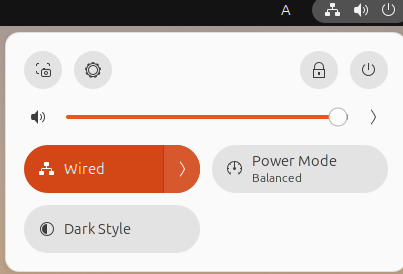
- Click “Log Out”
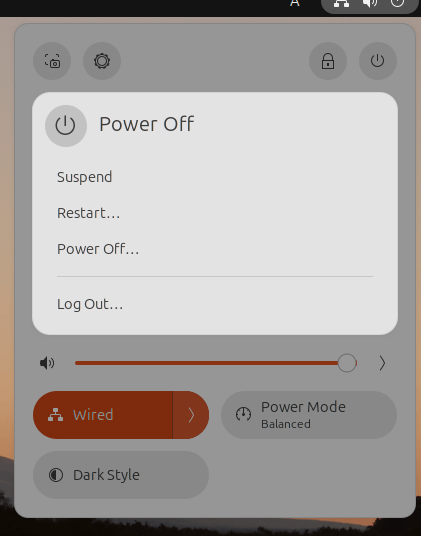
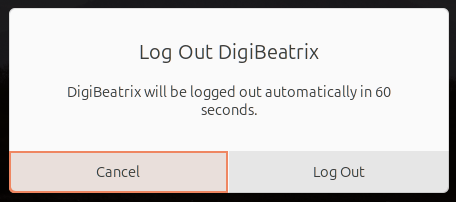
- When a confirmation dialog appears, select “Log Out”
On the logout confirmation screen, you may see a countdown timer depending on your environment.
If you clicked it by mistake, you can cancel during the countdown by selecting Cancel (the exact UI varies by environment).
Common Sticking Points (Where Beginners Often Get Confused)
- “Power Off” and “Restart” may appear next to it, so it’s easy to click the wrong one
→ The correct choice is “Log Out” (this is not a power action) - Depending on your Ubuntu version or theme, the wording may appear in English (Log Out)
→ It means the same thing
2.2 Difference Between “Switch User” and Log Out (Don’t Mix Them Up)
In Ubuntu, you may see Switch User in addition to Log Out.
- Log Out: ends the current user session and returns to the login screen
- Switch User: keeps the current session running and signs in as a different user
On shared or workplace PCs, leaving your session running while you step away can be risky,
so choosing Log Out is generally safer.
2.3 What You Must Check Before Logging Out (Safety Checklist)
Most logout problems come down to “forgetting to save.”
Right before logging out, at minimum confirm the following.
- Save files you’re editing (LibreOffice / VS Code / image editors, etc.)
- Save drafts for text you’re typing in the browser (such as the WordPress editor)
- If a long-running task is executing in the terminal (updates/copies, etc.), wait for it to finish
Note: When you log out, open apps will generally close.
Relying on “It should restore later” is risky, because it depends on the environment.
2.4 What to Do If You Can’t Log Out or Can’t Find the Menu
If you “can’t find Log Out” or “the top-right menu won’t open,” check the following in order:
- Nothing happens when you click the top-right corner
→ It may be a temporary UI glitch; wait a few seconds and click again - You’re operating via remote access (VNC, etc.)
→ Display and input may be delayed (varies by environment) - You’re using an Ubuntu flavor (Kubuntu / Xubuntu, etc.)
→ Menu placement differs because the desktop environment is different
(In that case, “logging out by command” later in the article can also help.)
In the next section, we’ll cover keyboard shortcuts for logging out and terminal-based logout methods.
3. How to Log Out Using the Terminal (Commands)
In Ubuntu, you can log out from the terminal even when mouse operations are unavailable.
The important point is that the command differs depending on “what you want to log out from.”
- Logging out from an SSH connection or CUI (black screen) → end the shell (connection)
- Logging out from the GUI (desktop) → end the desktop session
If you mix these up, you may think “I ran exit, but I’m not logged out.”
3.1 Basic Commands to Log Out from the Shell (SSH / CUI)
If you are connected to a server via SSH or using a login shell in a terminal, the following are the basics.
Method A: exit (Most Common)
exitMethod B: Ctrl + D (Send EOF)
Ctrl + DMethod C: logout (Available in Some Environments)
logoutCommon Pitfalls and Notes
logoutmay only work in a “login shell”
→ If it errors out, usingexitis fine.exitlogs out of the terminal session only; it does not close the GUI (desktop).
→ If you want to log out from the Ubuntu desktop itself, you need the next method.
3.2 Logging Out of the GUI (Desktop Session) by Command
On Ubuntu using the GNOME desktop, there are commands specifically for ending the desktop session.
These are also useful if the GUI freezes and menu operations don’t work.
Log Out with Confirmation (Safer)
gnome-session-quit --logoutLog Out Immediately without Confirmation (Use with Caution)
gnome-session-quit --logout --no-promptImportant Notes
- Using
--no-promptmay forcibly close the session even if there is unsaved work.
→ Only use this when the system is truly unresponsive and there are no other options. - If your desktop environment is not GNOME, this command may not exist.
→ Behavior varies by environment (Kubuntu, Xubuntu, etc.).
3.3 Logout Commands for Other Desktop Environments (Reference)
Even if Ubuntu looks similar, the underlying desktop environment may differ.
Here are a few representative examples (the command may not be installed depending on the setup).
- For Xfce (Xubuntu, etc.)
xfce4-session-logout- For LXDE / LXQt (lightweight environments)
lxsession-logoutCommon Pitfalls and Notes
- If the command is not found, it may not be installed or you may be using a different environment.
- If your goal is to log out of the GUI, using the menu method in Section 2 is the most reliable.
3.4 Why “exit” Didn’t Log You Out (Typical Cause)
This is a very common misunderstanding:
- You run
exitin the terminal - The terminal closes (or the SSH connection ends)
- The Ubuntu desktop screen remains
This is normal behavior. exit only ends the terminal session,
while the desktop login session remains active.
If you want to log out of the GUI as well, you need to use a session-ending command
such as gnome-session-quit --logout.
In the next section, we’ll organize safe logout practices for Ubuntu servers and SSH connections.
4. Logging Out on Ubuntu Servers (Including SSH)
In Ubuntu server environments, there is usually no GUI (desktop screen).
Therefore, “logging out” typically means ending your SSH connection or CUI login.
Here, we’ll clearly organize safe practices, including situations where disconnecting can cause problems.
4.1 Basic Ways to Log Out (Disconnect) from an SSH Session
When connected via SSH, logging out simply means closing the connection.
The three common methods are:
Method A: exit (Most Reliable)
exitMethod B: Ctrl + D (End with EOF)
Ctrl + DMethod C: logout (May Not Work in Some Environments)
logoutNotes
- If
logoutresults in an error, usingexitis sufficient. - With any method, the SSH connection ends and you return to your local machine.
4.2 Situations Where You Should NOT Disconnect Before Logging Out
In server operations, the server continues running even after you log out.
However, disconnecting during certain tasks can leave you unsure what was running and make recovery difficult.
Before logging out, at least check the following.
Check Whether Any Processes Are Running
- Look to see if any commands are still running in the current terminal
(e.g., updates, backups, copies, compression tasks)
Typical Example: Don’t Disconnect During Updates
sudo apt update
sudo apt upgrade
If you disconnect at this point, depending on the situation, the process may be interrupted and require re-running or repair (varies by environment).
Common Beginner Mistake
- Thinking “It froze” and closing the browser
→ In reality, the process may still be running
→ Waiting a few minutes and checking output is safer
4.3 Check Whether You’re Logged In (who / w)
To check “whether you are currently logged in” and “from where,” the following commands are useful.
List Logged-In Users (Simple)
whoCheck Connection Sources and Activity
wKey Point
- Each SSH connection is a separate session.
→ Disconnecting one does not end other active SSH connections.
4.4 Keeping Tasks Running After Logging Out (screen / tmux Concept)
In server work, you may want to log out while leaving a long-running task active.
In such cases, tools like screen or tmux—virtual terminals that keep running after disconnection—are commonly used.
For a beginner-oriented article, it’s safest to focus on the key takeaway:
- If you log out during normal SSH work, the task may stop
- To safely continue long-running tasks, consider using
screenortmux(varies by environment)
*This article does not dive into detailed steps, but covering them in a separate article can be strong from an SEO perspective.
4.5 Common Mistakes and Cautions (Server Edition)
- Mistake 1: Thinking the server stops when you log out
→ Logging out of SSH only ends your connection; the server continues running. - Mistake 2: Disconnecting during root work and forgetting what was done
→ Keeping logs of executed commands is important. - Mistake 3: Assuming all sessions ended after closing one SSH connection
→ You can check login status withwhoorw.
In the next section, we’ll resolve common real-world issues such as “can’t log out” or “logout doesn’t work.”
5. Common Mistakes and Troubleshooting
Logging out of Ubuntu is generally simple, but in real-world situations you may encounter issues like “it doesn’t work,” “it won’t return,” or “nothing happens.”
In this section, we prioritize beginner pain points and organize the causes and solutions.
5.1 The Log Out Option Is Missing (Not Shown in the Menu)
Symptoms
- You open the top-right menu, but can’t find “Log Out”
- You only see “Power Off” or “Restart”
Common causes
- You’re using an Ubuntu flavor (Kubuntu / Xubuntu, etc.) with a different UI
- The desktop environment is not GNOME, so the menu layout differs
- The UI is in English and you overlooked “Log Out”
What to do
- Check for English labels such as “Log Out” or “Sign Out”
- If you still can’t find it, log out using a command
gnome-session-quit --logout*This may not work outside GNOME (varies by environment).*
5.2 Shortcuts Don’t Respond (Ctrl + Alt + Del Doesn’t Work)
Symptoms
- Pressing
Ctrl + Alt + Deldoes not show a logout screen - Nothing happens
Common causes
- The shortcut is disabled
- Another application is capturing the key input
- The keys aren’t being passed through during a remote desktop session
What to do
- Use the GUI menu to log out (most reliable)
- If using remote access, check shortcut/key passthrough settings in the client
(e.g., you may need to send the keys to the host)
5.3 “I Ran exit, but I’m Not Logged Out” (Desktop Still Active)
Symptoms
- You ran
exitin the terminal - The Ubuntu desktop remains logged in
Cause
exitends the terminal/SSH session only, not the GUI session
What to do
- To end the GUI session, run the following
gnome-session-quit --logoutNotes
- Unsaved work may be lost when logging out
- Avoid using
--no-promptunless absolutely necessary
5.4 Can’t Log Out (Clicking Does Nothing / System Appears Frozen)
Symptoms
- Clicking Log Out doesn’t change the screen
- The system is slow or appears frozen
Common causes
- Temporary desktop issues
- High system load delaying processing
- An application has stopped responding
What to do (in order of safety)
- Wait about one minute (it may just be slow)
- Try logging out again from the top-right menu
- If you can open a terminal, try a logout command
gnome-session-quit --logoutIf none of this helps, a restart may be required (varies by environment).
5.5 When a Forced Logout Is Necessary (Last Resort)
Example situations
- The screen is completely frozen and unusable
- You can’t even open the logout dialog
- You must end the session at all costs
In such cases, “terminating processes” is an option of last resort, but it’s risky for beginners.
Only proceed if you understand what it does and act carefully.
Example: Force-Kill a User’s Processes (Dangerous)
pkill -KILL -u usernameImportant warnings
- Unsaved data will almost certainly be lost
- Running processes will be forcibly stopped
- Specifying the wrong user will affect other users
As a general rule, forced actions should be used only when there is no other option.
5.6 “I Can’t Go Back” or “My State Is Gone After Logging Out”
Symptoms
- After logging out, previously open apps or work states are not restored
- Your in-progress work is missing
Causes
- Logging out ends the session, so state is often not preserved
- The application did not auto-save
What to do
- Build a habit of saving before logging out
- Prioritize saving drafts for browser-based work (e.g., WordPress)
- If you’re stepping away briefly, Sleep may be more appropriate
In the next section, we’ll answer common questions in an FAQ format for quick resolution.
FAQ
Q1. Do “Log Out” and “Log Off” mean the same thing in Ubuntu?
Yes, they essentially mean the same thing.
In Ubuntu, “Log Out” is the common term and refers to ending the current user session and returning to the login screen.
Q2. Does logging out turn off the PC?
No.
Logging out only ends the user session; the PC (OS) remains powered on.
To power off the system, choose “Shutdown.”
Q3. Will my open apps and work remain after logging out?
Generally, no.
Because apps close when you log out, unsaved work may be lost.
Always save before logging out.
Q4. Does typing exit in the terminal log me out of Ubuntu entirely?
No.
exit ends the terminal (shell) or SSH session only.
To log out of the desktop (GUI), you may need a command like gnome-session-quit --logout, depending on your environment.
Q5. Is there a keyboard shortcut to log out of Ubuntu?
It depends on the environment.
In some cases, Ctrl + Alt + Del opens a logout screen, but it may not work depending on settings or environment.
The most reliable method is logging out from the top-right menu.
Q6. How do I log out during an SSH session?
While connected via SSH, you can log out (disconnect) using any of the following:
exitCtrl + Dlogout(may not work in all environments)
After logging out, the server continues running; only your connection is closed.
Q7. What should I do if I can’t log out and the system is frozen?
First, wait briefly and try again. If that fails and you’re using GNOME, try the command below.
gnome-session-quit --logoutIf the issue persists, a restart may be necessary (varies by environment).
Q8. What’s the difference between Switch User and Log Out?
- Switch User: signs in as another user while keeping the current session running
- Log Out: ends the current user session and returns to the login screen
On shared PCs, logging out is safer because it leaves no session data behind.